Upload a Python script, a JSON config, or a README.md to your FileGrab link. Click on it. Instead of downloading the file to read it, you now see it rendered directly in the browser with syntax highlighting, line numbers, and smart formatting.
What It Looks Like
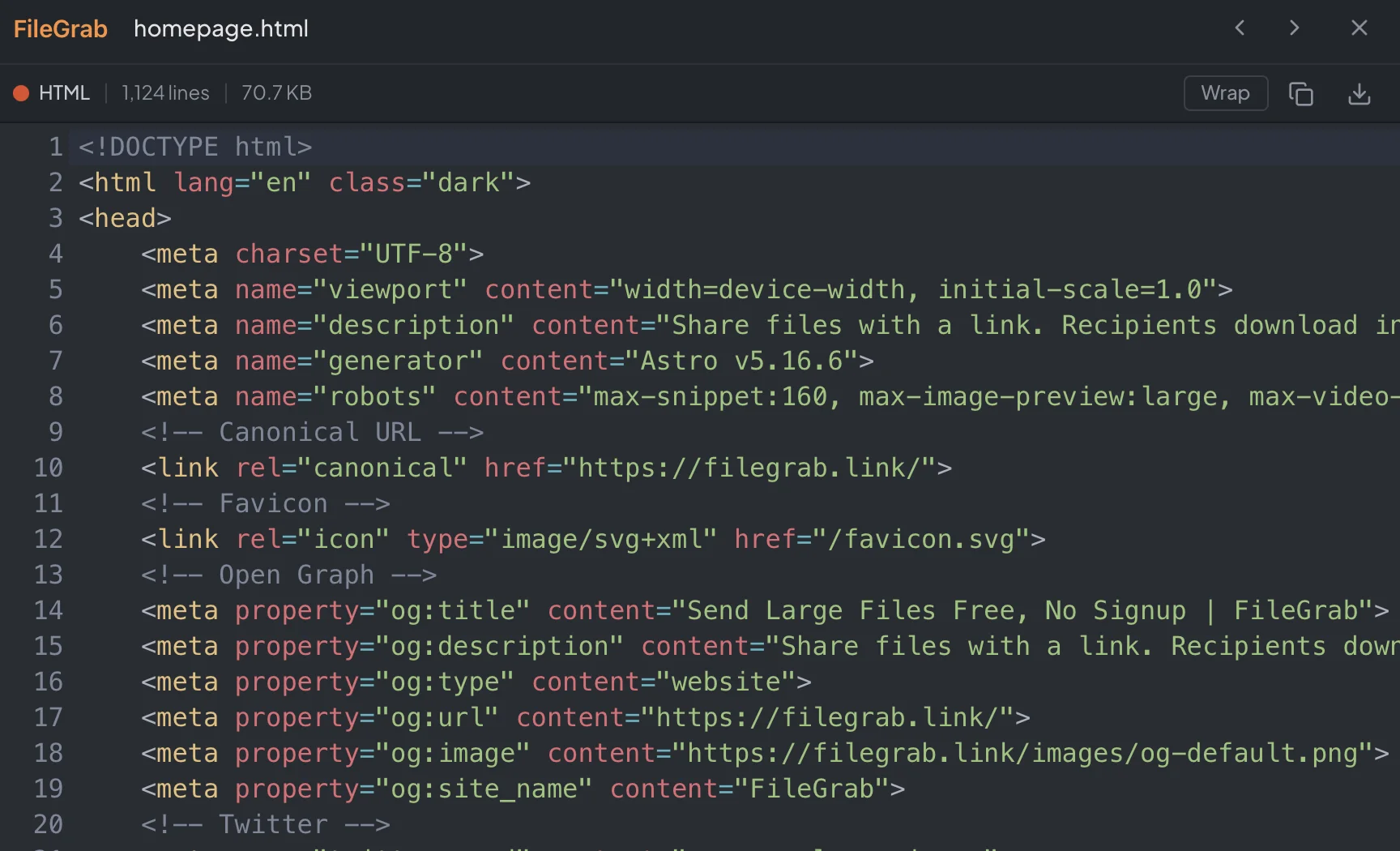
The code viewer opens full-screen when you click any supported text file. You get:
- Syntax highlighting powered by Shiki (the same engine behind VS Code) with the One Dark Pro theme
- Line numbers along the left side
- Built-in search with Ctrl/Cmd+F
- Word wrap toggle for long lines
- Copy and download buttons in the header
- Keyboard navigation between files using arrow keys or
[and]
Press Escape or click the close button to return to your file list.
100+ Supported File Types
The viewer recognizes files by their extension and handles all the common ones:
Programming languages: JavaScript, TypeScript, Python, Java, C, C++, C#, Go, Rust, Ruby, PHP, Swift, Kotlin, Scala, Dart, Elixir, Haskell, Julia, Lua, Perl, R, Zig, Solidity, and more.
Web files: HTML, CSS, SCSS, Sass, Less, Vue, Svelte, Astro.
Data formats: JSON, XML, YAML, TOML, INI, CSV, TSV, Protocol Buffers.
Config files: .env, .gitignore, Dockerfile, Makefile, Terraform, CMake, .prettierrc, .eslintrc.
Shell scripts: Bash, Zsh, Fish, PowerShell, Batch.
Database and query languages: SQL, Prisma, GraphQL.
Documentation: Markdown, MDX, reStructuredText, LaTeX.
Other: Diff/Patch files, log files, plain text.
If a file extension isn’t in the list but the MIME type says it’s text, the viewer will still open it as plain text with line numbers.
Special Renderers for Markdown, JSON, and CSV
Some file types get more than just syntax highlighting.
Markdown: Preview and Raw
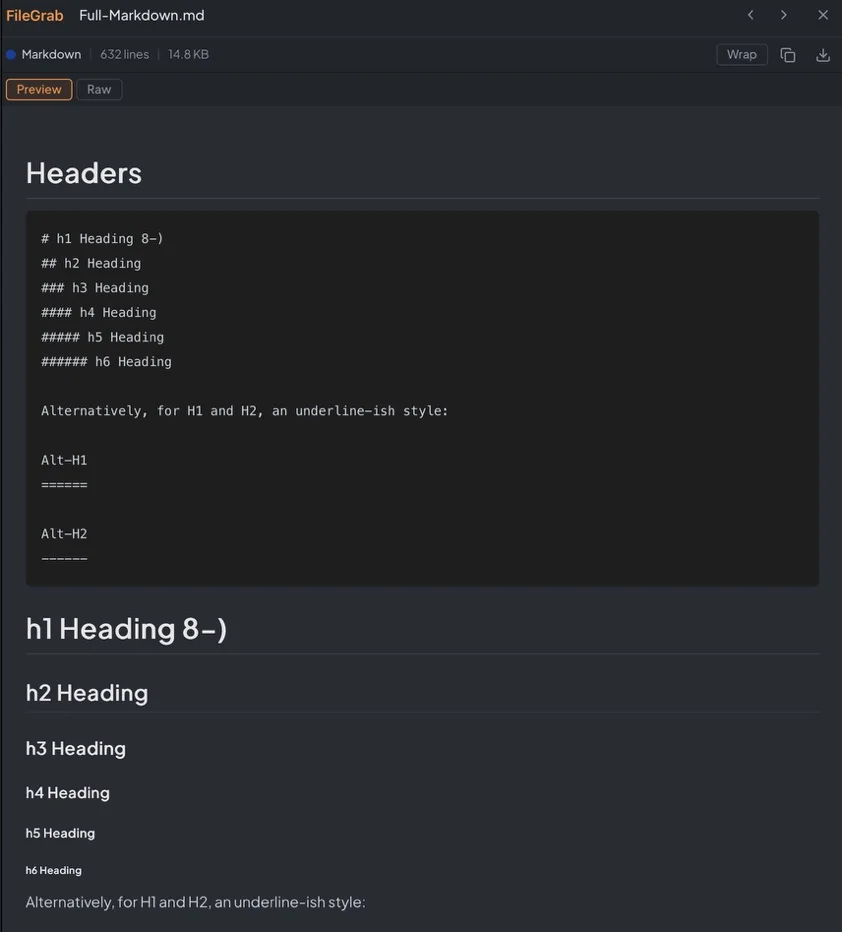
Markdown files open in Preview mode by default, rendering the full formatted output with headings, links, code blocks, tables, task lists, and strikethrough (GitHub-flavored Markdown). Toggle to Raw to see the source with syntax highlighting.
JSON: Formatted and Tree
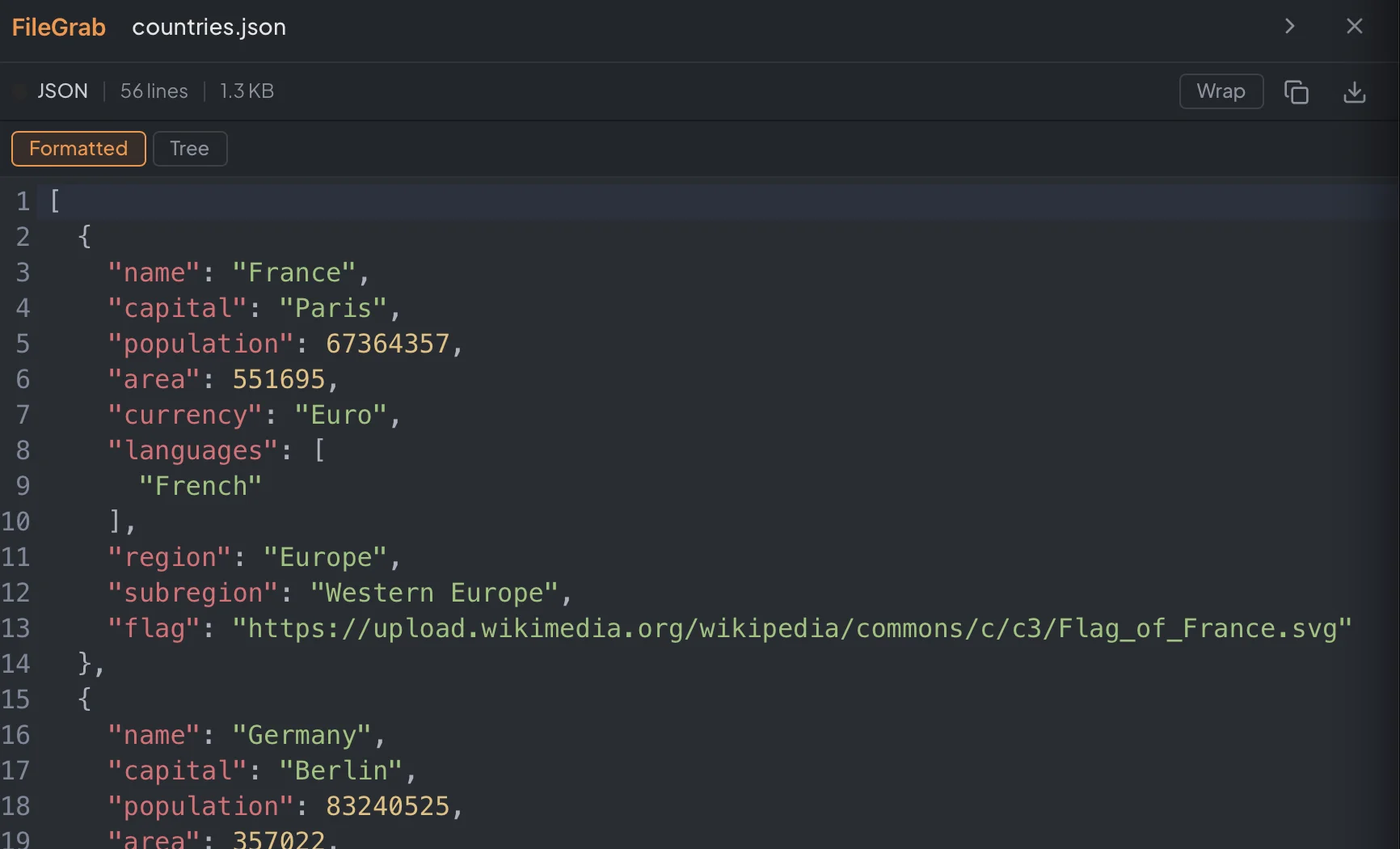
JSON files open in Formatted mode with pretty-printed, syntax-highlighted source. If the file was uploaded minified, the viewer automatically formats it with proper indentation.
For files under 500 KB, a Tree toggle appears. This renders the JSON as a collapsible, interactive tree you can click through to explore nested data without scrolling through thousands of lines.
CSV and TSV: Table and Raw
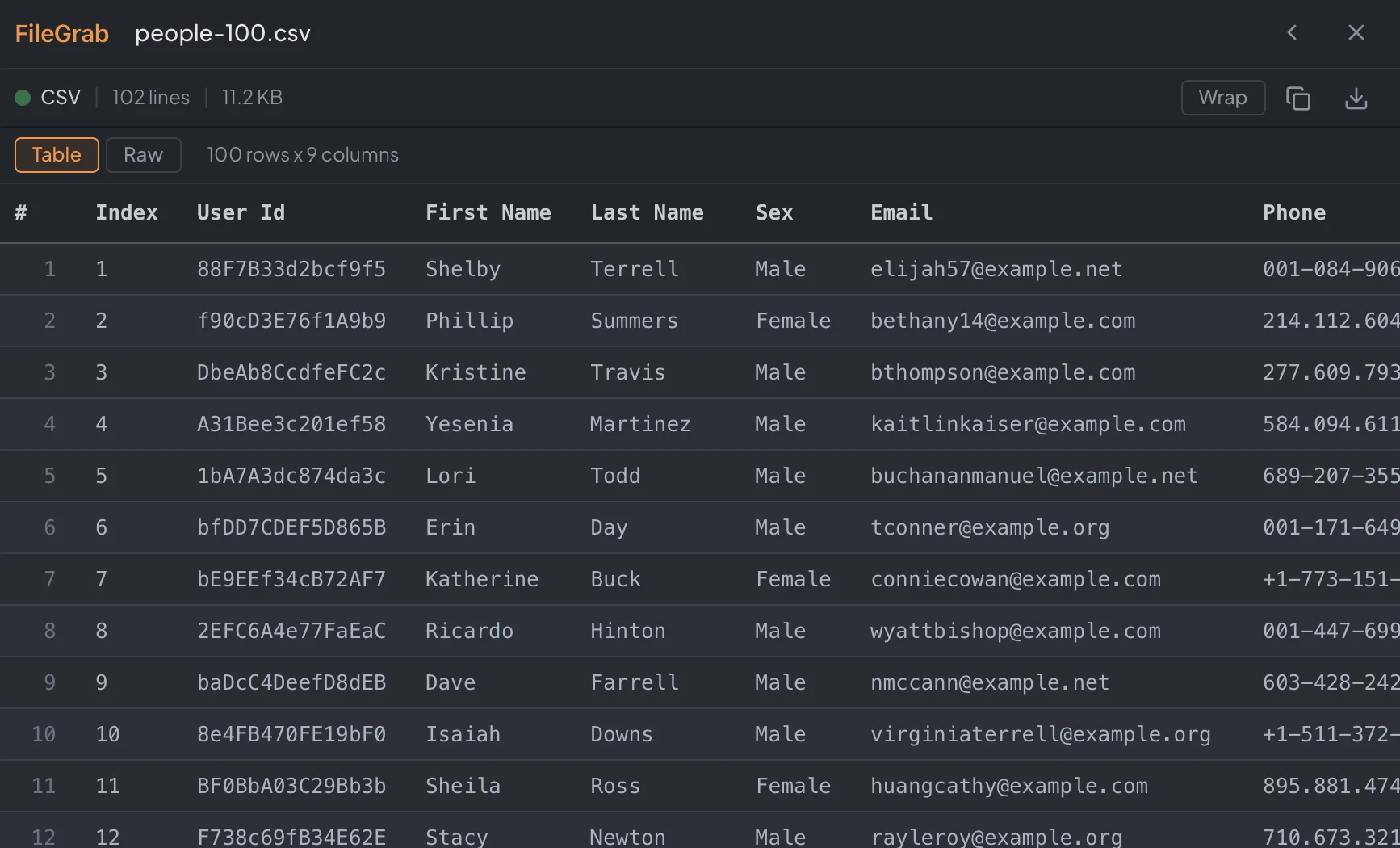
CSV and TSV files under 1 MB default to Table mode, which renders the data as an HTML table with a sticky header row, row numbers, and column alignment. The table shows the first 1,000 rows with a count of total rows.
Toggle to Raw to see the original delimited text with line numbers.
Line Deep-Linking
Click any line number in the gutter to highlight that line. The URL updates to include the line reference:
https://filegrab.link/abc12345?preview=file-id#L42Shift+click a second line number to highlight a range:
https://filegrab.link/abc12345?preview=file-id#L42-L50Share that URL and the viewer will open directly to those highlighted lines, scrolling them into view automatically. This is useful for pointing someone to a specific section of a config file, a function definition, or a block of data.
Large File Support
The viewer handles files well beyond what most browser-based viewers attempt:
| File Size | How It Loads |
|---|---|
| Under 10 MB | Loaded entirely into the viewer |
| 10 to 100 MB | Streamed in 64 KB chunks, stops at 10,000 lines |
| 100 to 512 MB | First portion loaded with a truncation notice |
| Over 512 MB | Download only (too large for browser rendering) |
For truncated files, a banner at the top tells you how many lines are shown and offers a download link for the full file.
Keyboard Shortcuts
| Key | Action |
|---|---|
Escape | Close the viewer |
Left arrow or [ | Previous file |
Right arrow or ] | Next file |
Ctrl/Cmd + F | Search within the file |
Try It
Upload any code or text file to your FileGrab link and click on it. The viewer activates automatically for any recognized file type. No setup, no plugins, no configuration.